Sidewalk Portal Help All help pages

Choosing your repairs

What this page is for: picking one option card, seeing the price, saving your choice and saying you are ready.

Every hazard is measured and priced. You choose. You can change your mind until you sign.

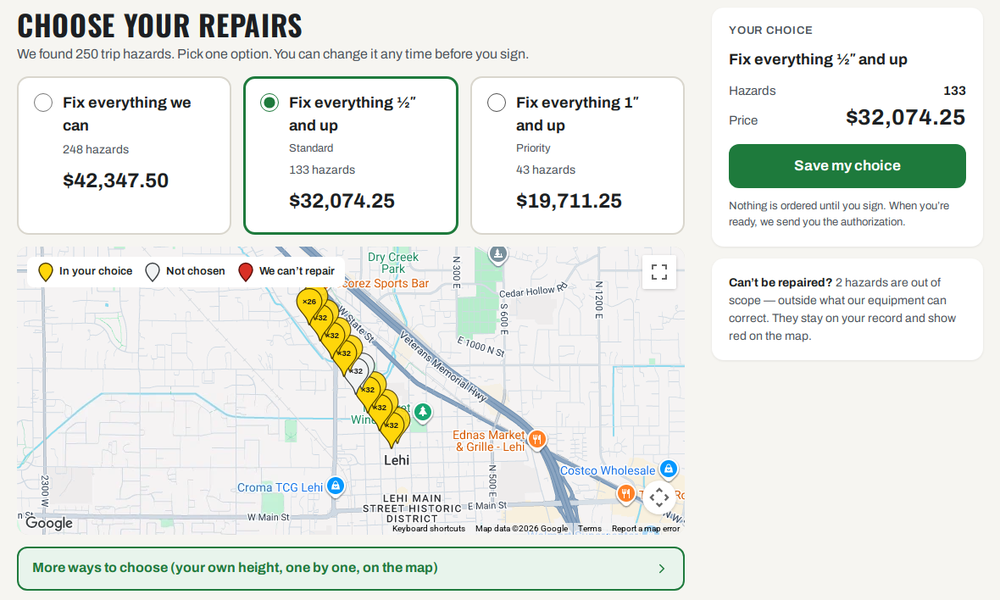
The Choose your repairs page: three option cards with hazards and price, the middle one outlined green, a map, the More ways to choose button, and the Your choice box with a green Save my choice button
On a computer. Demo project. Not a real price.
  1. On your project card, click Choose your repairs.
  2. You see CHOOSE YOUR REPAIRS and your option cards. Each card says how many hazards and the price.
  3. Click the card you want. It gets a green outline.
  4. Look at Your choice. It shows the hazards and the price.
  5. Click the green Save my choice button.

On a computer there is a map too. Yellow pins are in your choice. White pins are not chosen. Red pins are ones we can’t repair.
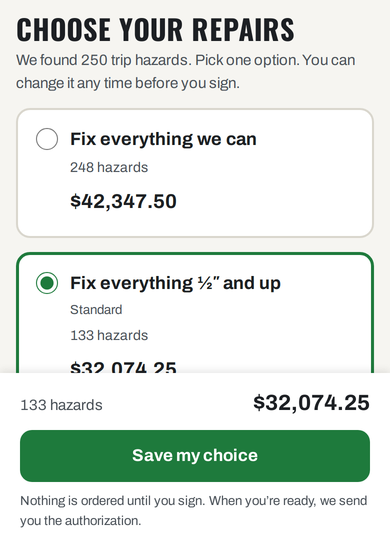
Choose your repairs on a phone: option cards, the chosen one outlined green, and a green Save my choice button at the bottom
On a phone. The price and the button stay at the bottom.

After you save

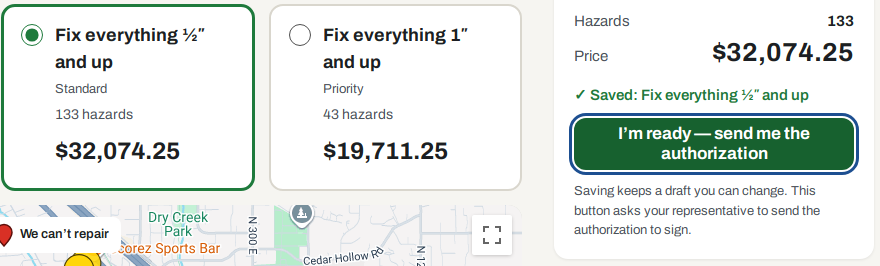
  1. It says ✓ Saved: and the name of your choice.
  2. A new green button appears: I’m ready — send me the authorization. Press it only when you are sure. See I’m ready, and signing.
The chosen card outlined green and the Your choice box saying Saved, with the green I’m ready button
Saving is not ordering. Saving keeps a draft. Nothing is ordered until you sign.

Want more ways to choose?

Under the options there is a green outlined button: More ways to choose (your own height, one by one, on the map).

Click it to pick your own height, pick hazards one by one, or use the map. See More ways to choose.

The words in the brackets can be fewer. They show the ways your project has.

The green outlined More ways to choose button

Good to know

Can’t choose? (Viewer logins)

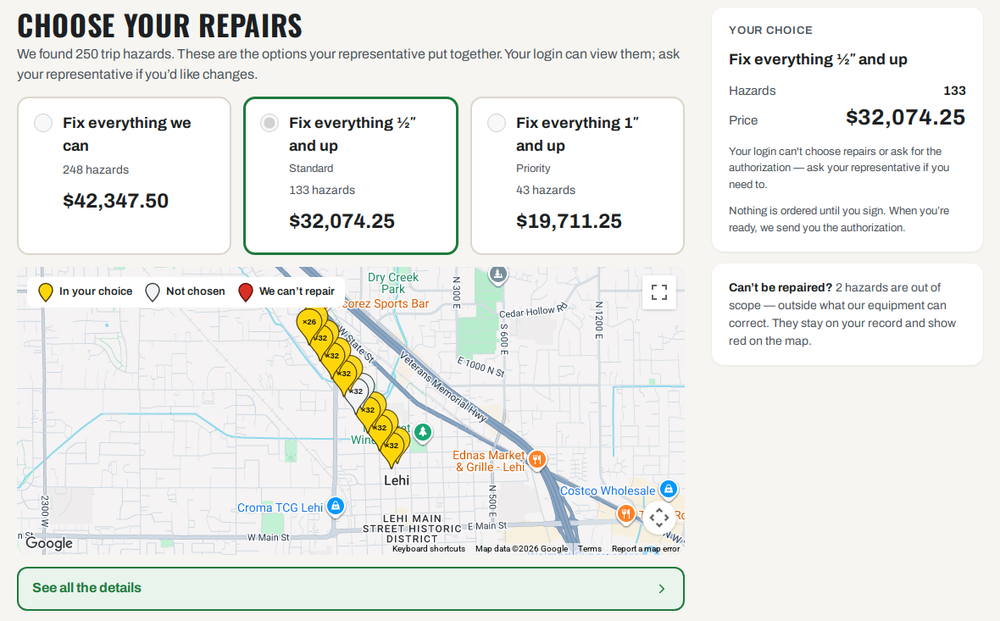
If your login is a Viewer, you can see the options and the prices. There is no Save button. The page says your login can view the options, and to ask your representative if you would like changes.

The button under the options says See all the details. Click it to see more.

Want to choose? Ask an Admin on your team, or your representative.

Choose your repairs for a Viewer: the options and prices, no Save button, and a See all the details button
A Viewer login. Demo project.

Stuck?

Your representative sent new options? Your old choice no longer counts. Choose again and save.

Call or email your representative. Their name, phone and email are at the top of every portal page. No name there? Call the number at the bottom of every portal page.

← The survey mapMore ways to choose →